About This Walkthrough
This walkthrough will take you through the following scenarios:
- Setting up automatic Manifest screen refresh
- Understanding different types of issues and why some deliveries do not appear as done
- Resolving issues
Roles
- Drivers (Edward, Nathan, Debbie)
- Operations Manager (Caroline)
Story
Edward, Nathan and Debbie are drivers and they each have a delivery route for today that they are working through on Service Manager Mobile. Debbie has completed all of their work without an issue, however, one of Edward's sites was closed when they arrived and a bin on one of Nathan's site has been damaged. Caroline is going to have to find and handle those issues back at the office.
Setting Manifest screen to automatically refresh
- From the home page, choose Administration then select Edit Settings from the menu
- Choose the Deliveries tab
- Choose the Options tab
- For the setting that reads "Automatically refresh manifest screen after X minutes of inactivity", select the number of minutes you want the refresh interval for the screen to be.
In this example, I have selected 5 minutes. - Click Save
Viewing the manifest
- From the home page, choose Deliveries
- Choose the Manifest (Sites) tab
- Clear any search filters using the Clear button
- Update the "Done" filter to say No
- Click the Search button
- The deliveries displayed is everything for today that hasn't been done yet.
You will see to the top right of the grid that the refresh icon that is displayed to signify that automatic refresh is enabled. The icon looks like so:

Distinguishing between issues
- As the day goes on, the list of incomplete deliveries will get smaller and smaller.
- By the end of the day, only the two sites with issues will be displayed.

- The delivery to "Star Coffee Camden" has a site issue which is highlighted by the issue description and the yellow warning icon. So why does the delivery for "Koch, Dare and Crooks" not have a site issue on it?
- Click the "Koch, Dare and Crooks" delivery and you can see on the Items tab that it is actually an item on this delivery that has an issue.

Resolving the site issue
- As the site was closed when Edward attempted to deliver, we will just add a revisit for tomorrow.
- Right-click the delivery for "Star Coffee Camden" and select Add Site Re-visit from the menu
- In the popup window, enter the details of when the revisit will be performed. We will select tomorrow on route 1 at 9am along with a note to the driver as to why they have been given a revisit.
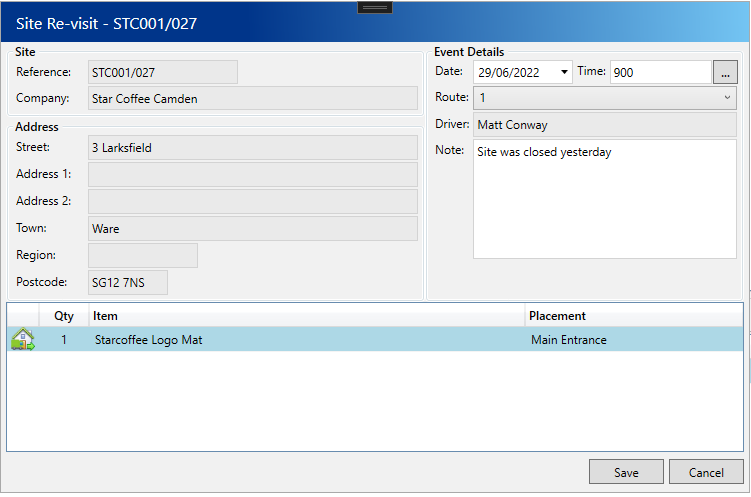
- Click Save
- The revisit will have been added to route 1 for the date selected but the original delivery is still visible.
Right-click the delivery for "Star Coffee Camden" again and select Mark All Items Done from the menu. - The delivery will immediately dissappear from the screen, you're only searching for deliveries that aren't done and you've just marked it as such!
Resolving the item issue
- For Nathan's bin we can't just add a revisit. The bin has been vandalised and so we need to install a replacement.
- Select the delivery for "Koch, Dare and Crooks"
- Click the Issues tab
- Select the issue in the grid then click the Add Installation button
- Similar to the revisit, we need to enter the details for when we want to schedule the installation for.
In this case we are going to search the schedule so we just do it whenever we happen to be delivering to the site next. - Click the ... button
- You will be shown a new popup which lists all of the regularly scheduled deliveries for this site.
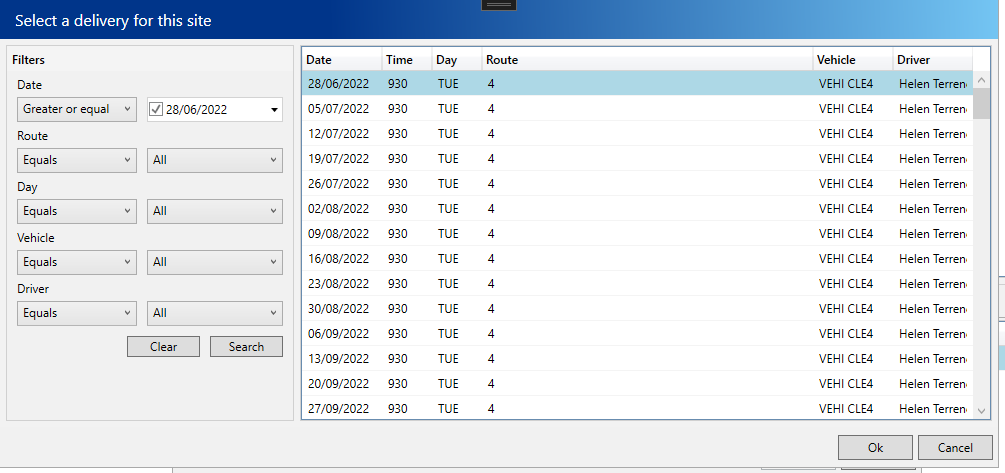
- Select the date you want to schedule this installation for and then click the Ok button. In this example, I will select 05/07/2022.
- After clicking Ok, the details for the date you selected will automatically be filled out for you.
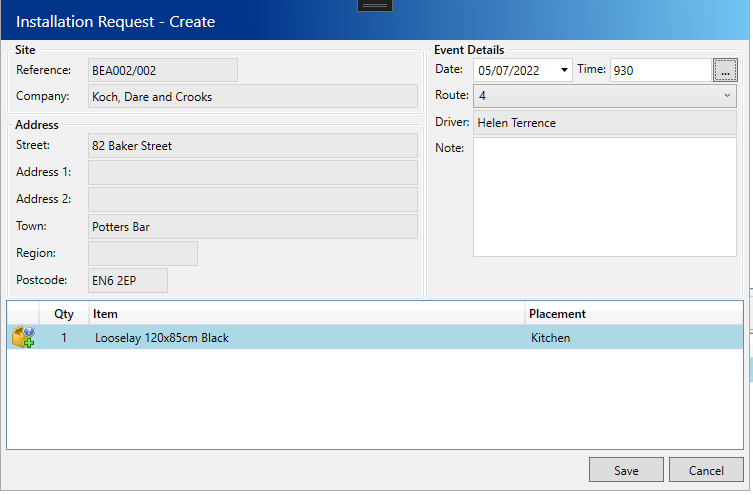
- Click Save
- You will be prompted if you want to mark the issue as resolved, click Yes
- Again the screen will refresh and now there should be no deliveries displayed as everything for the day has been done!
Next Steps
There will be times when you can't always resolved the issues there and then. You may want to leave these until you know how you want to resolve them, for these cases you can use the Unresolved Issues screen to search for issues that haven't been resolved.