To Request an E-Signature
- From the home page , choose the Sales option.
- Choose the New Business tab.
- Find and select the correct agreement by using the search window or create a new agreement. For more information see How to: Add a New Business Agreement.
- Choose Options and select Request E-Signature.
- In the popup, select an existing portal user from the dropdown or enter the name and email address for a new user.
- In the Notifications box, you can enter any email addresses that you want to be notified when the customer completes their signature.
- Click the Request Signature button.
How the customer completes their signature
- The customer will receive an email requesting them to "Review and Sign" the agreement.
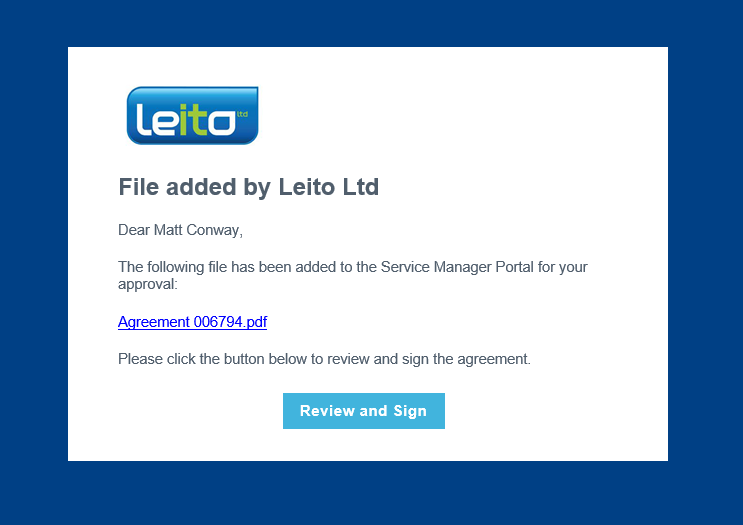
- Click on the Review and Sign button.
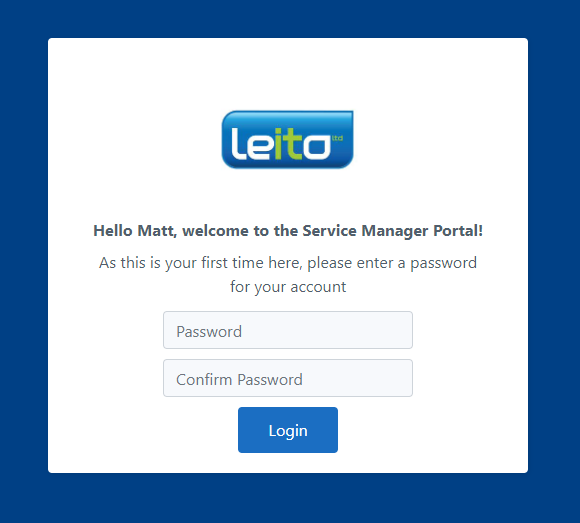
- If this is their first time using the customer portal, they will be required to set a password.
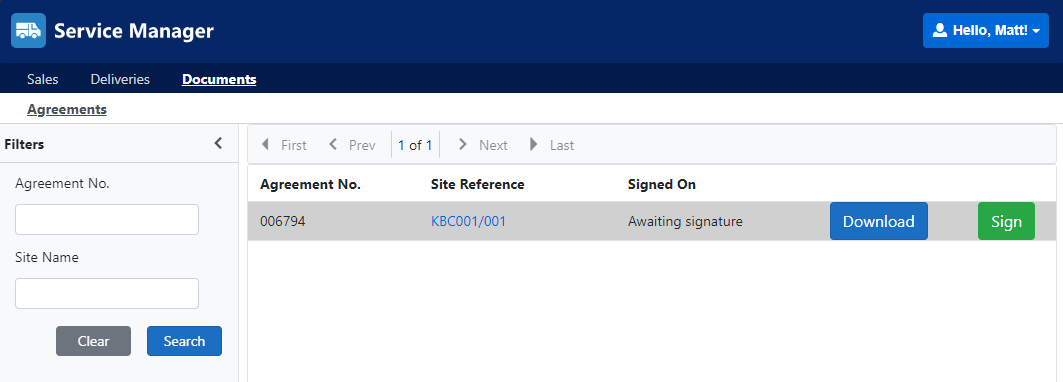
- Once they're logged in, the customer will be displayed a list of their agreements ready to sign. The agreement must be downloaded before the customer can enter a signature. Once downloaded, press the Sign button.
- In the popup the customer must enter their full name, initials, either draw or upload their signature and finally check the box to declare they agree to their signature being used.
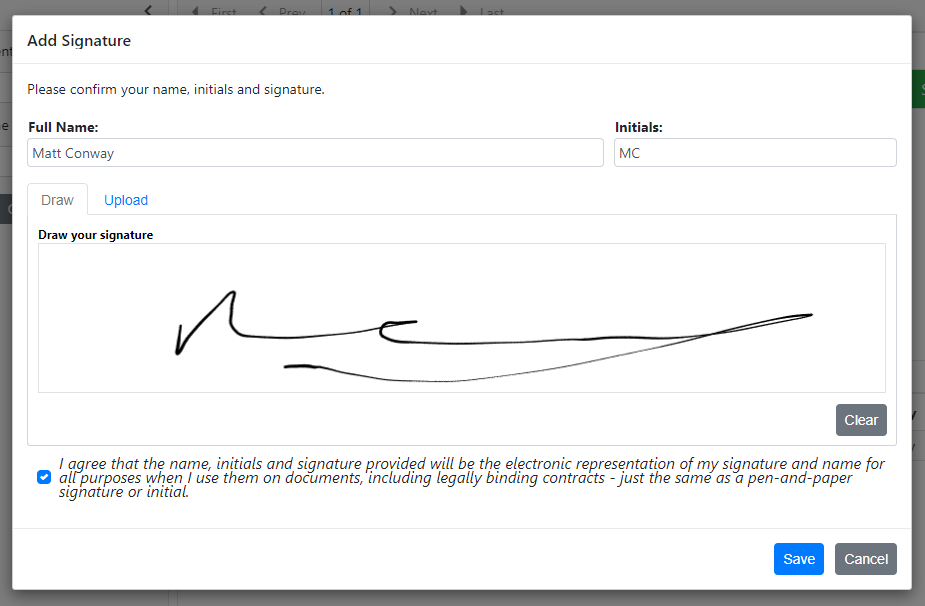
- Once all information is entered, the customer can click the Save button.
- The signed agreement will be downloaded to the customer's PC and the signed copy will automatically be uploaded against the agreement in Service Manager.