Within Service Manager mobile, there is a dedicated section to view any outstanding installs you have which is accessed from the home screen.
To sign for the installs, you go through the standard delivery process. See How to: Sign for an Install for more information.
To view all installs for a route

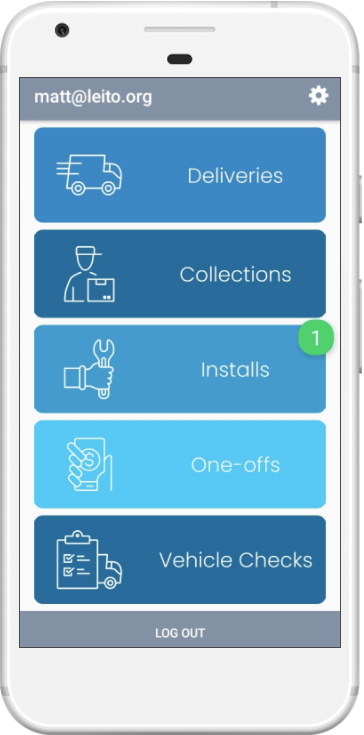
Home If you have any outstanding installs that need completing, there will be a notification indicator over the top right of the installs button. Click the Installs button. |

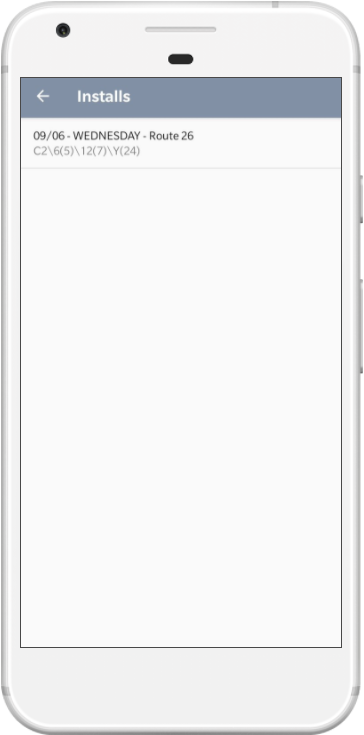
Dates The deliveries shown are only those with Installations scheduled. Select the date that you would like to view. |

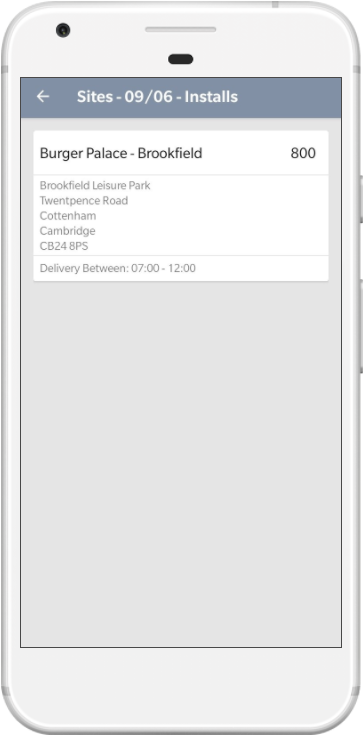
Sites All sites with the current event type will be displayed. Select the site you would like to view. |
 |
 |
 |

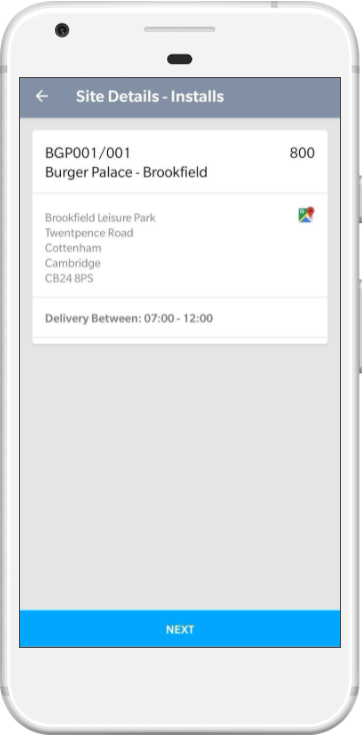
Site Details The site details will be displayed, the same as a normal delivery. Click Next to proceed. |

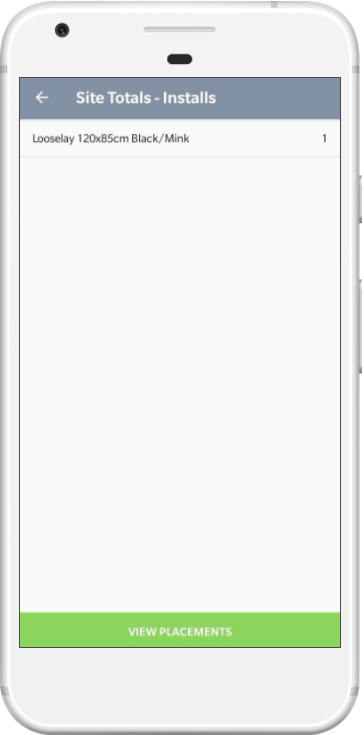
Totals The item totals are shown for the installation events, click Next to proceed to the placements. |

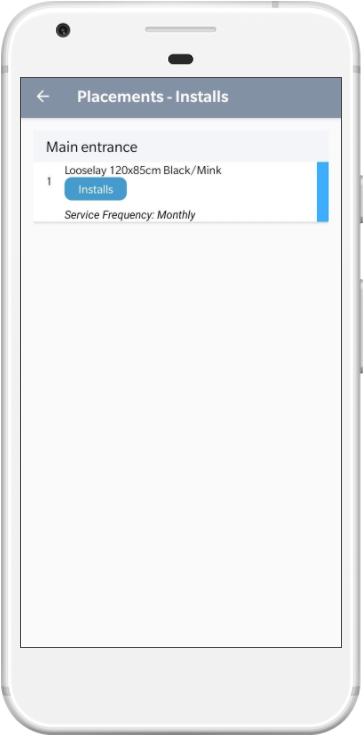
Placements The placement information and any notes for the installs are shown. See How to: Sign for an Install for more information on signing for the installs. |
 |
 |
 |