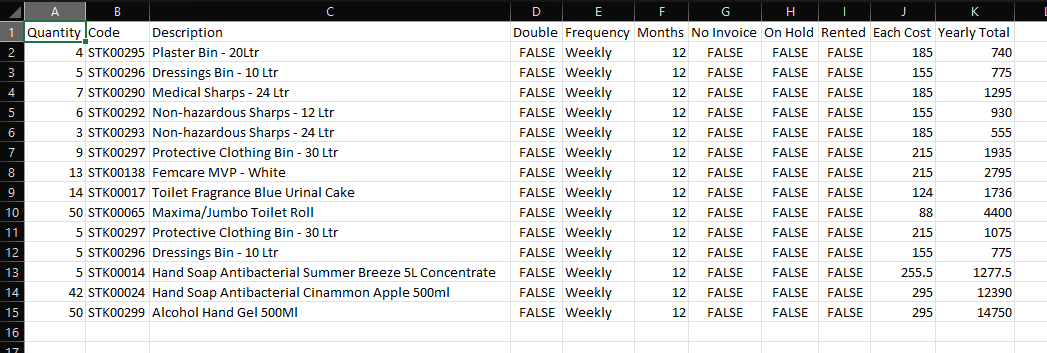
On any of the grids within Service Manager you can right-click the grid to copy the selected rows to a spreadsheet by clicking the "Copy to Excel" button on the right-click menu.
You can select multiple rows at once by holding the Ctrl key and clicking the rows you want, you can also use Ctrl + A to select everything and you can even hold Shift and click to select a range of rows.
Example
On the Agreements screen I want to select all of the Weekly items on the agreement. I click the top item, hold the Shift key and then click the bottom Weekly item.
Now that I have the items selected I right-click the grid to show the menu.
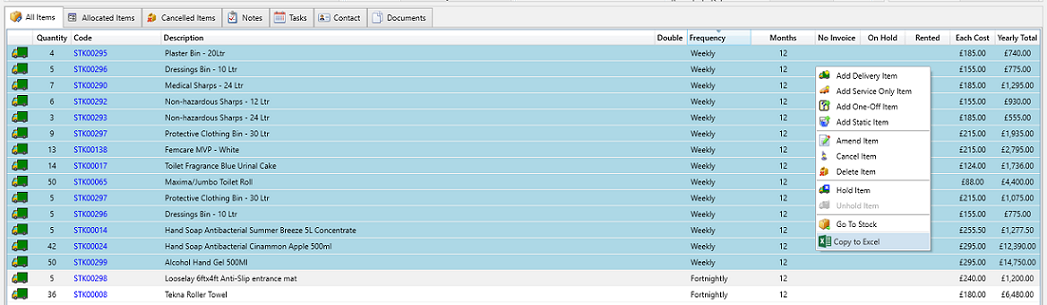
On the right-click menu, I click the Copy to Excel button then in my spreadsheet, I press Ctrl + V to paste the rows. The column headers will automatically be included for you.