You can create a manifest from either the Manifest (Site) or Manifest (Route) screens.
Create a manifest
- From the home page, choose Deliveries
- Choose either the Manifest (Sites) or the Manifest (Routes) tab
- Click Create Manifest
- The calendar is shown
- Choose the date you would like to create and click Create
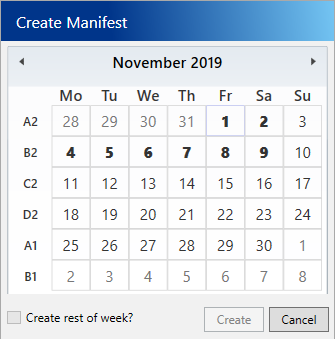
- You can create more than one day at a time by selecting the Create rest of week option, this will create up to Sunday.
- A progress window displays whilst the dates are being created, when finished your newly created routes are selected
To re-create a manifest
Certain system changes will require the manifest to be created. For example if you add a new site or agreement and assign items to a route that has already been manifested for the week.
-
From the home page, choose Deliveries
-
Choose either the Manifest (Sites) or the Manifest (Routes) tab
-
Click Create Manifest
-
The calendar is shown
-
Choose the date you would like to re-create. This will be shown in bold
-
Click Create
-
The date will initially be deleted and then re-created
Under certain circumstances you will be unable to re-create certain dates. This is normally if a driver has started to service the sites on a route and has obtained a signature already.
See Also