To get started with Service Manager - Mobile, you will need to first create a login. For more information, see Create a User.
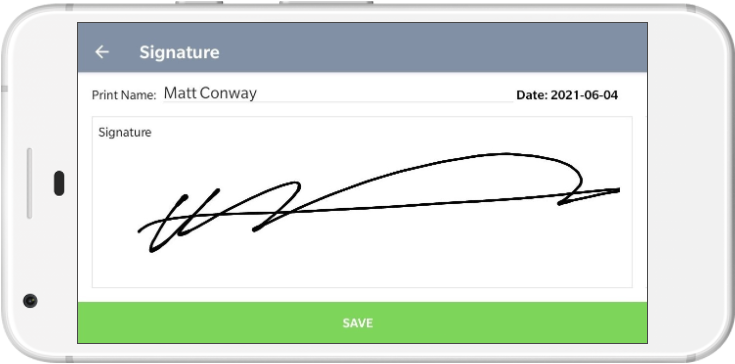
Below walks you through completing a service for a site and capturing the customers signature.

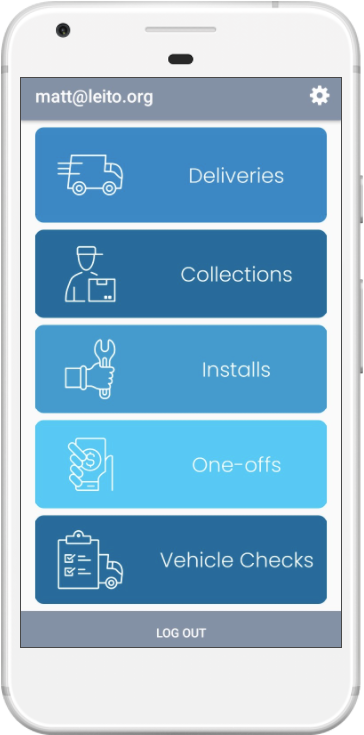
Deliveries From the home screen choose Deliveries. |

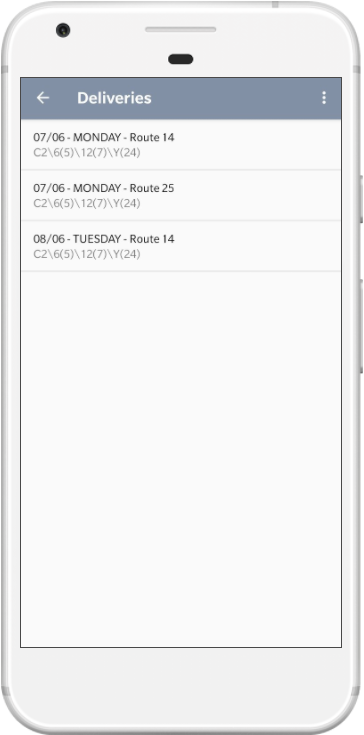
Pick a route Choose a route to start servicing. There may be multiple routes for a given date. |

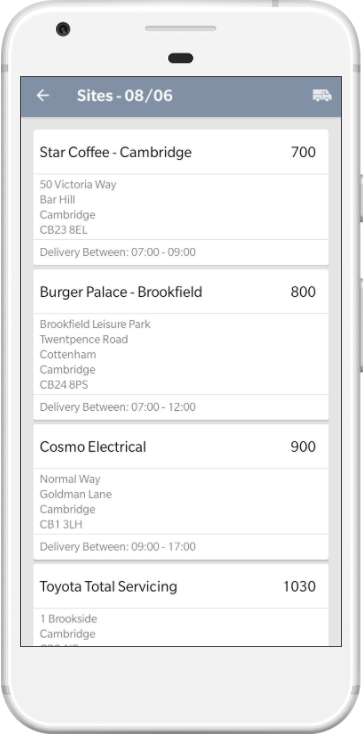
Sites The sites are shown in the correct delivery order. Click a site to view further details. |
 |
 |
 |

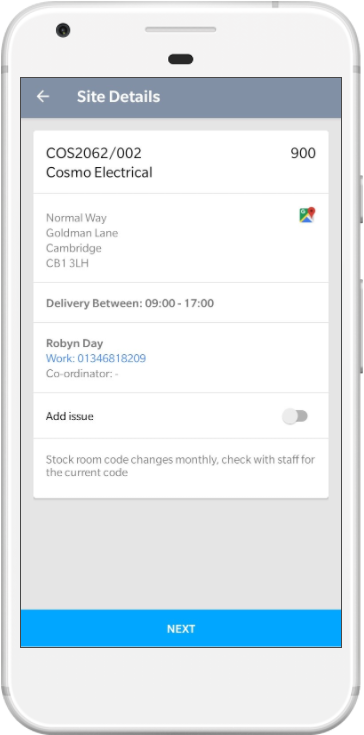
Site Details Displays the site address,special instructions, opening hours and contact details. |

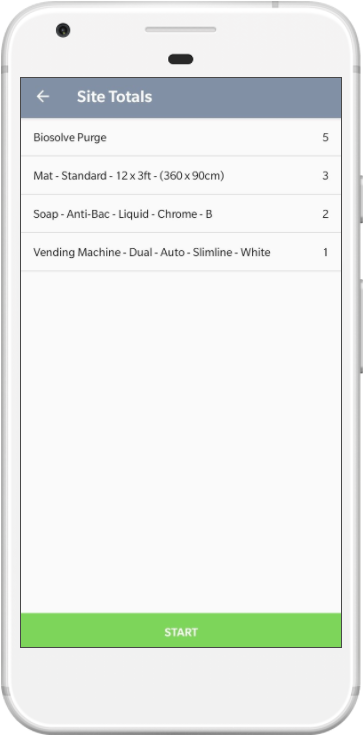
Totals Displays a summary of this sites items. |

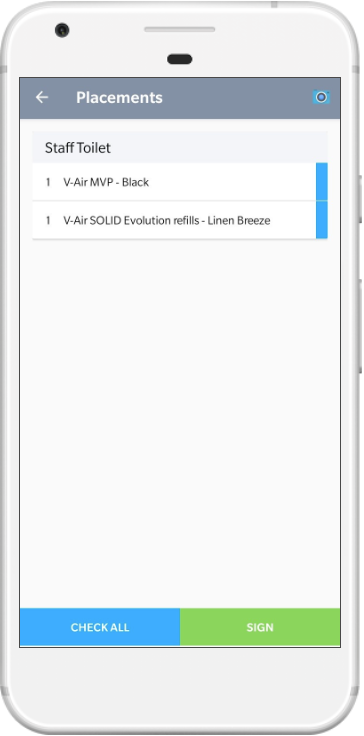
Placements The Items are shown in the correct placement order. Click the camera button in the top right of the screen. |
 |
 |
 |

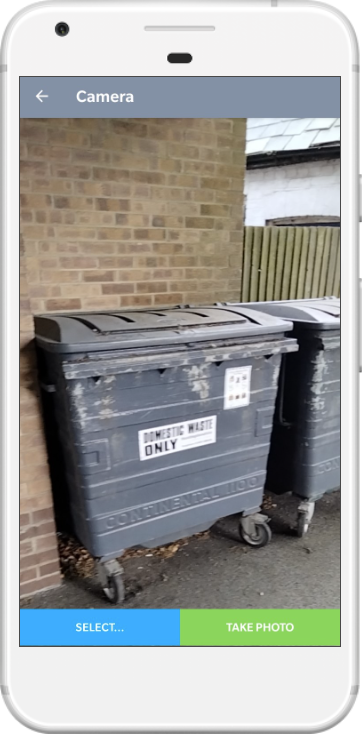
Capture Photo The current camera view will be displayed, you can click "Take Photo" to take a photo or "Select..." to choose one from the gallery on the phone |

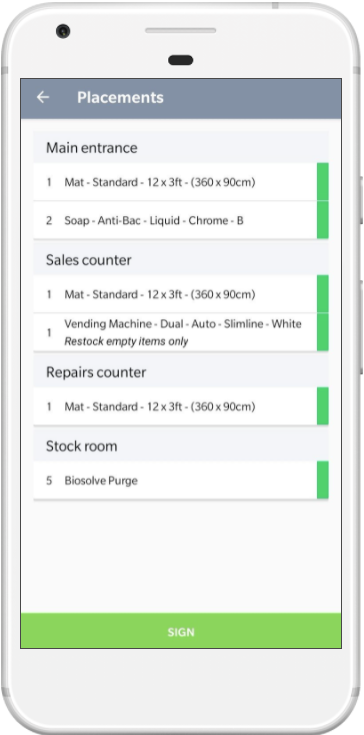
Finish Action all of the items on the delivery and then click Sign. |

Signature Enter the signee name and record their signature if required. Click Save. |
 |
 |
 |